Free beginner guide
Make AI images and videos like this, on your own computer.
A zipper that unzips a lake to show a galaxy. Sunlight poured into a glass. A road rolling up like a carpet. Here's how to make clips like these yourself. Free. Open-source. Runs on your computer. Here for the prompts from our posts? Weirdest prompts video · Animal ID photos
Facts below were checked in October 2026 against the official docs and model pages listed in Sources. Software changes fast, so menus may look a little different.
What you need
The part that matters most is your graphics card (GPU) and how much memory it has (VRAM). On Windows, open Task Manager, go to Performance, then GPU, and read "Dedicated GPU memory".
Disk space: plan on roughly 45 GB free. The app needs about 4.85 GB per install. The image model files add up to about 21 GB and the video model files about 18 GB (sizes from the Hugging Face file listings).
Speed: we don't quote generation times because they swing widely with your GPU, its memory, and the size you choose. Wan's own model card says the 5B model can make a 5-second 720p video "in under 9 minutes" on a single consumer GPU. Smaller cards will take longer.
No NVIDIA GPU, a Mac, or a weak laptop?
Honest options
- AMD on Windows: ComfyUI lists support for Radeon RDNA 2, 3, 3.5 and 4 cards.
- Apple Silicon Mac (M1 or later, macOS 13+): supported through Apple's Metal. Images are realistic to try. Video works, but it's slow, and how slow depends on your chip and memory.
- Weak GPU: make images first (they're quicker). For video, use a smaller size and a shorter length (see Step 4).
- No usable GPU: Comfy Cloud runs the same app in your browser on Comfy's GPUs. When we checked in October 2026 it offered "5 free runs on real GPUs" for new users, with paid plans from $20/month. Check the pricing page for current terms before you sign up.
Step 5 · Make it impossible
Surreal clips work when one impossible thing happens in an otherwise believable photo. Build each prompt from five parts:
Example: a calm mountain lake (subject) + unzipped like a jacket (impossible action) + golden zipper pull, starry galaxy beneath (material) + cinematic vertical shot, shallow depth of field (camera) + at dusk, natural light (light). Then write the video prompt as motion only: what keeps moving, and how the camera behaves.
These are the exact prompts behind our video. Each one has an image prompt (Z-Image) and a motion prompt (Wan).
1 · The lake that unzips
Image
A hand pulling a large golden zipper pull across the surface of a perfectly calm mountain lake at dusk, the strip of water already unzipped behind it opens to reveal a glowing deep starry night sky and galaxy beneath the surface, pine trees and mountains reflected, Photorealistic, cinematic vertical shot, shallow depth of field, natural light, highly detailed, real photograph.
Motion
The hand slowly pulls the golden zipper down across the calm lake, the water unzips and opens wider, revealing more of the glowing starry galaxy beneath the surface, tiny ripples spread on the lake. Photorealistic, cinematic, smooth natural motion, satisfying, the camera holds steady with a slow push in.
2 · Sunlight poured into a glass
Image
The setting sun over the ocean is melting, glowing molten orange sunlight drips down from the sun in a thick stream and pours into a clear glass held up by a hand in the foreground, the glass filling with glowing liquid sunlight that lights up the hand, beach at dusk, Photorealistic, cinematic vertical shot, natural light, highly detailed, real photograph, surreal but believable.
Motion
A thick glowing stream of molten orange sunlight keeps pouring down from the setting sun into the glass, the glowing liquid level rises and swirls inside the glass, small sparkles, gentle waves on the ocean behind. Photorealistic, cinematic, smooth natural motion, satisfying, the camera holds steady with a slow push in.
3 · The road that rolls up
Image
High angle view of a city intersection where an entire block of asphalt road with white crosswalk stripes is peeling up from one corner like a giant sticker, a huge curl of road lifting high into the air, a bright green meadow with wildflowers revealed underneath, pedestrians on the sidewalk staring, daylight, Photorealistic, cinematic vertical shot, natural light, highly detailed, real photograph, surreal but believable.
Motion
The asphalt road with crosswalk stripes keeps rolling up by itself like a carpet, rolling away along the street and revealing more bright green meadow with wildflowers underneath, pedestrians walk on the sidewalk. Photorealistic, cinematic, smooth natural motion, satisfying, the camera holds steady with a slow push in.
4 · A slice of cloud
Image
A real white cumulus cloud floating in a blue sky just above a wooden table on a rooftop, a hand holding a silver cake knife slicing straight down through the cloud, a neat wedge of cloud separating and resting on a white cake plate below, wisps of vapor at the cut, Photorealistic, cinematic vertical shot, natural light, highly detailed, real photograph, surreal but believable.
Motion
The hand slices through the soft white cloud piece on the plate with the cake knife, the cloud splits softly and wisps of white vapor curl up from the cut, the big cloud in the sky drifts slowly. Photorealistic, cinematic, smooth natural motion, satisfying, the camera holds steady with a slow push in.
5 · An ocean wave in a cone
Image
A waffle ice cream cone held by a hand on a beach, instead of ice cream the cone holds a scoop of real transparent turquoise ocean water with a tiny perfect curling wave breaking on top, white sea foam, sunlight shining through the water, small fish visible inside, Photorealistic, cinematic vertical shot, natural light, highly detailed, real photograph, surreal but believable.
Motion
Inside the waffle cone a tiny turquoise ocean wave curls and breaks over and over, white sea foam spills over the edge of the cone, tiny fish swim inside the water, real waves crash on the beach behind. Photorealistic, cinematic, smooth natural motion, satisfying, the camera holds steady with a slow push in.
Tips that helped us: describe the impossible thing as if it were ordinary ("a scoop of real ocean water"). Add a hand or people for scale. Ask for a steady camera, because wild camera moves make the physics fall apart. Not every seed works, so we made two images per idea and kept the best.
The 6 prompts from our video
Came from the "weirdest prompts" video? Here they are, exactly as typed. Each one took about 6 seconds on our PC with Z-Image Turbo. Paste one into the image workflow from Step 4, keep the size and seed to get a very similar picture, or change the seed for a new take.
They also work as image prompts in other AI image tools, but results will look different there.
1 · The cat astronaut
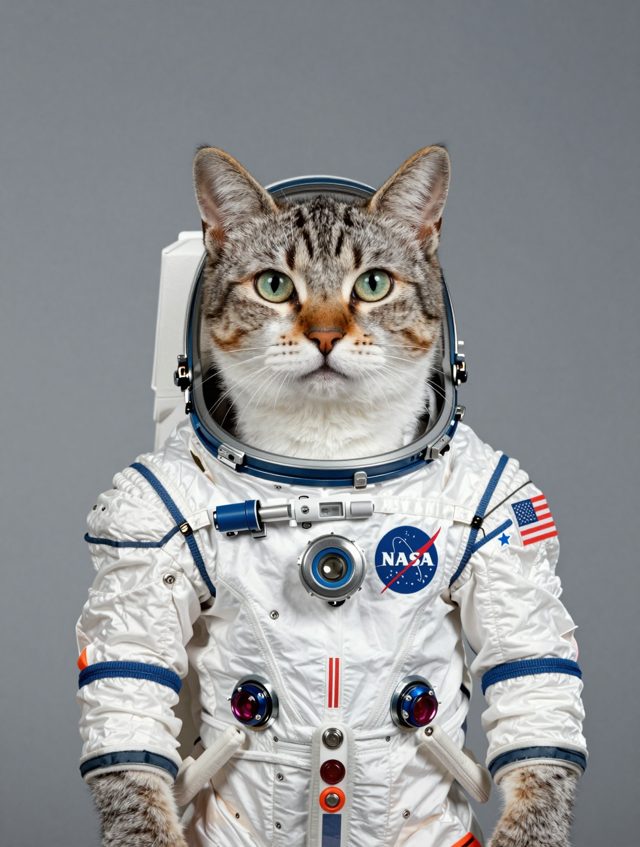 Image · Z-Image Turbo · 1088×1440 · seed 202
a cat's official NASA astronaut ID photo, serious face, tiny spacesuit, studio portrait
2 · The LinkedIn dog
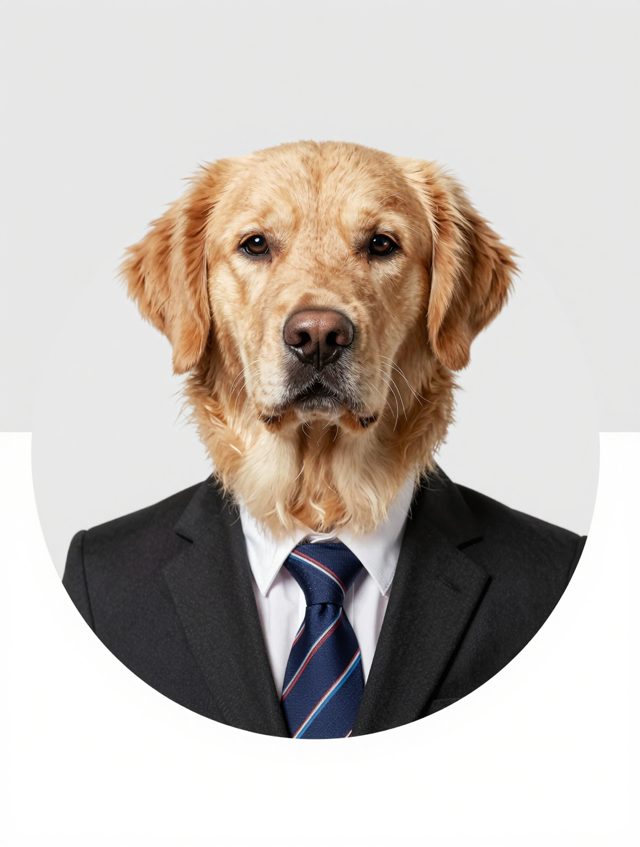 Image · Z-Image Turbo · 1088×1440 · seed 101
a golden retriever's LinkedIn profile picture, wearing a suit and tie, professional headshot
3 · The dinosaur photobomb
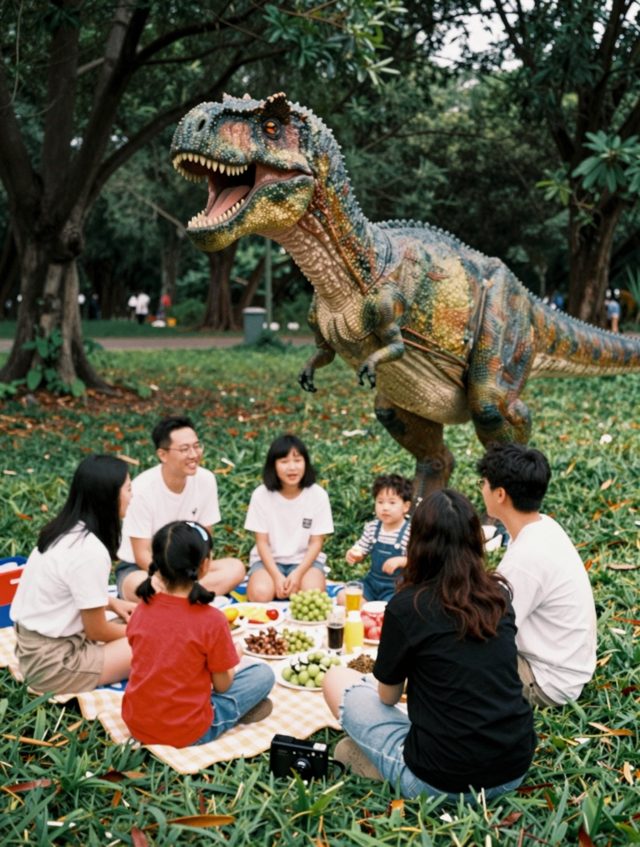 Image · Z-Image Turbo · 1088×1440 · seed 202
a dinosaur photobombing a family picnic, shot on a 1999 disposable camera, flash photo
4 · The hamster's dream house
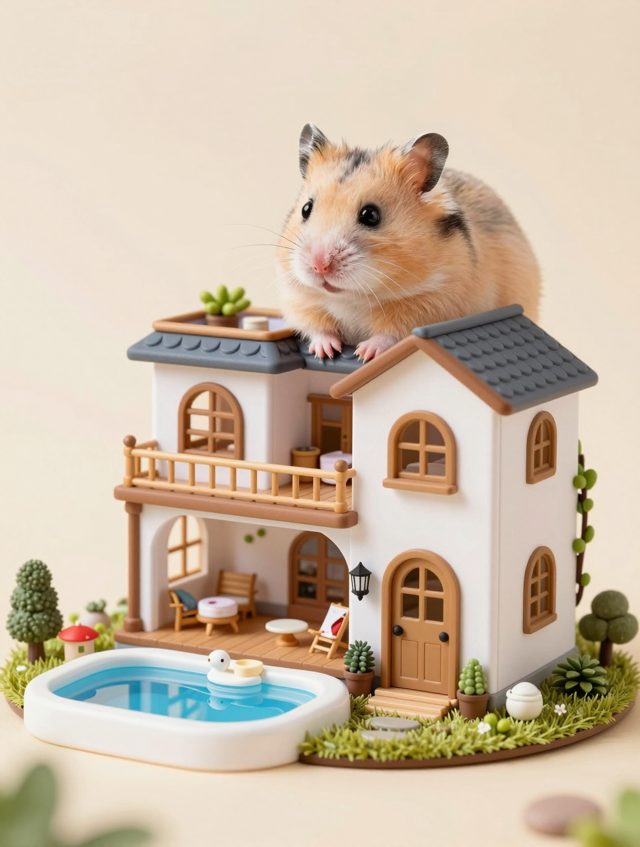 Image · Z-Image Turbo · 1088×1440 · seed 101
what a hamster's dream house looks like, tiny luxury mansion with a pool, realistic miniature photo
5 · The most expensive sandwich
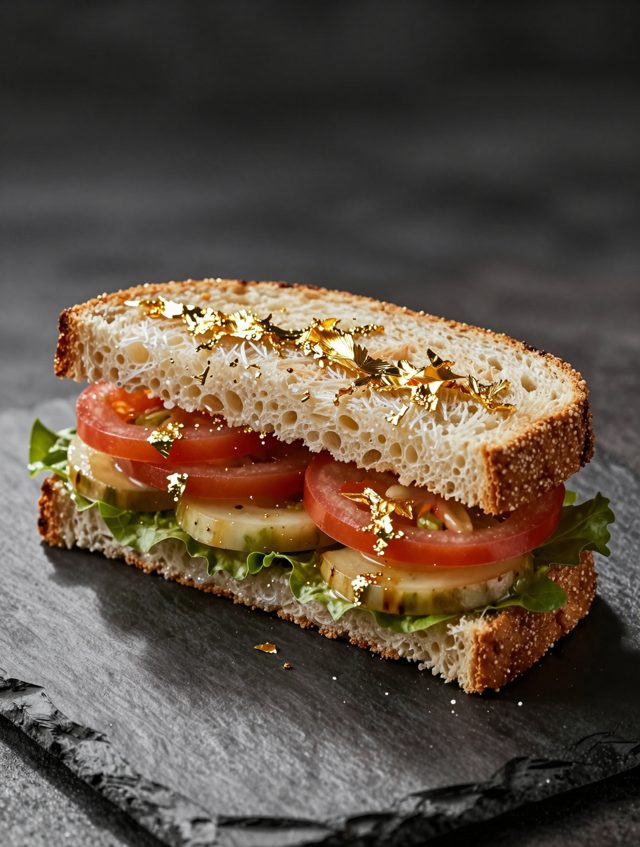 Image · Z-Image Turbo · 1088×1440 · seed 101
the world's most expensive sandwich, luxury food photography, gold leaf, dramatic lighting
6 · The last selfie on Earth
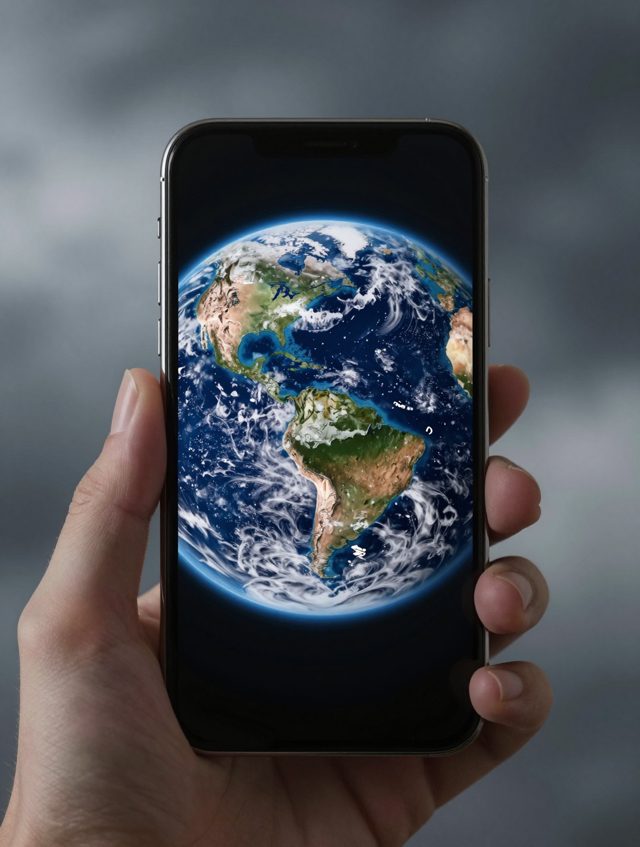 Image · Z-Image Turbo · 1088×1440 · seed 202
the last selfie ever taken on Earth, dramatic sky, realistic smartphone photo
The animal ID photo prompts
From our "animals' official ID photos" slideshow, exactly as typed. Same setup as above: Z-Image Turbo, about 6 seconds each on our PC.
1 · The cat's driver's license
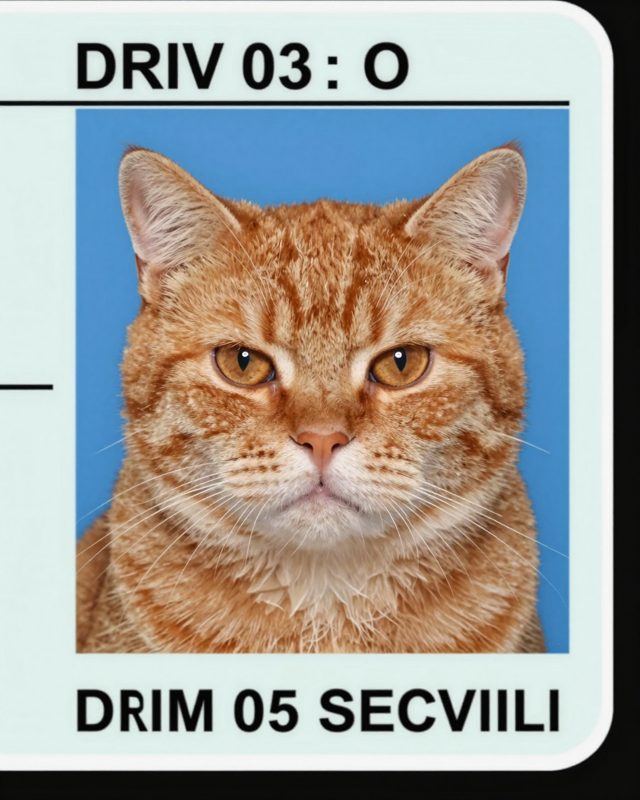 Image · Z-Image Turbo · 1088×1360 · seed 22
a grumpy orange cat's official driver's license photo, DMV photo booth, flat flash lighting, blue background, unflattering, realistic photo
2 · The pigeon's passport
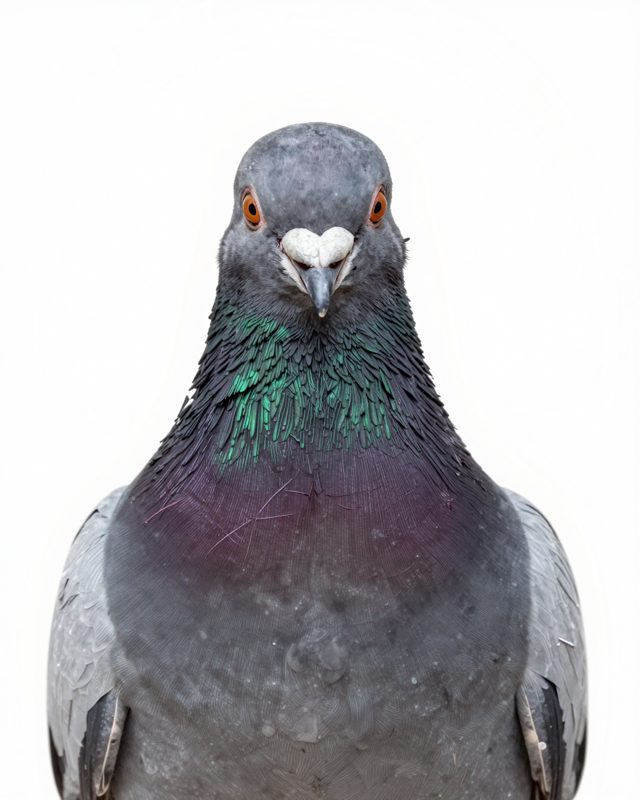 Image · Z-Image Turbo · 1088×1360 · seed 22
a pigeon's passport photo, front facing, neutral expression, plain white background, official ID photo, realistic
3 · The frog's graduation portrait
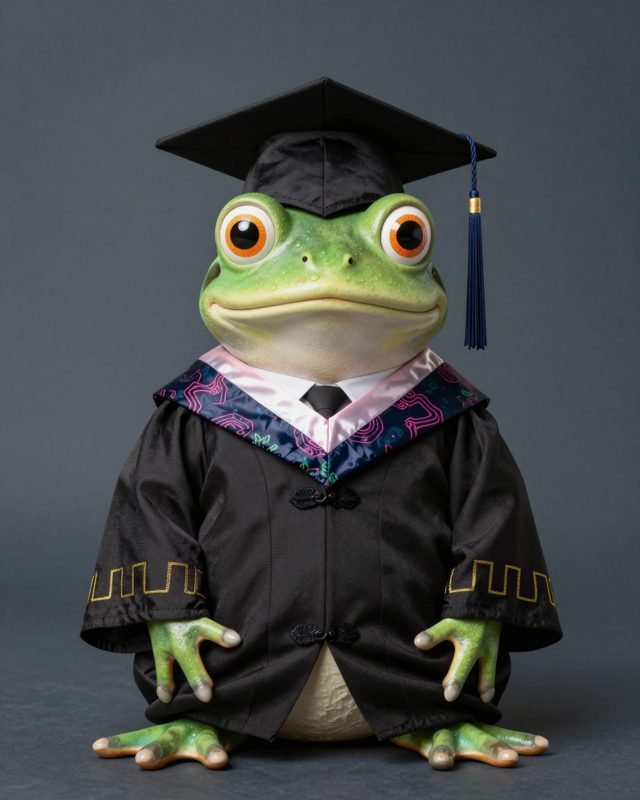 Image · Z-Image Turbo · 1088×1360 · seed 11
a frog's high school graduation portrait, wearing a tiny cap and gown, studio backdrop, realistic photo
4 · The golden retriever's mugshot
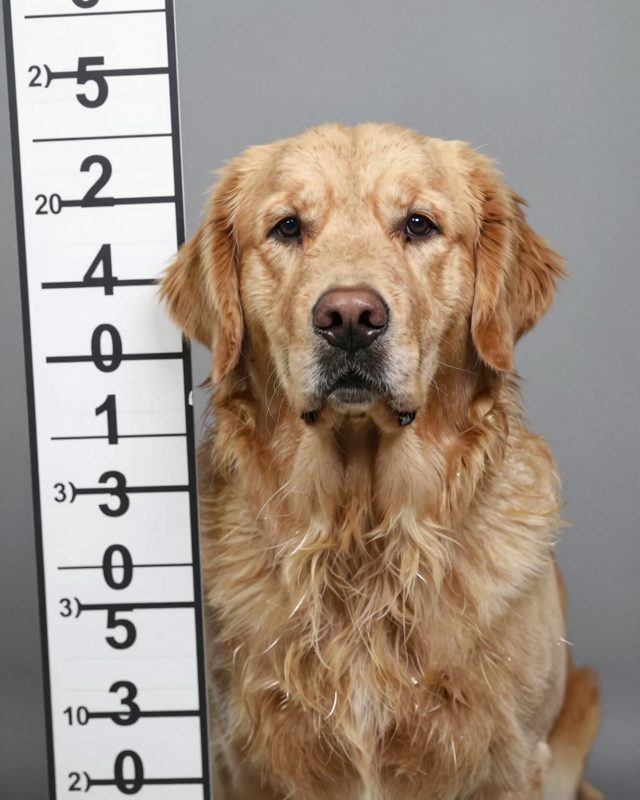 Image · Z-Image Turbo · 1088×1360 · seed 22
a golden retriever's mugshot, holding a height chart sign, police booking photo, guilty face, realistic photo
5 · The goose's WANTED poster
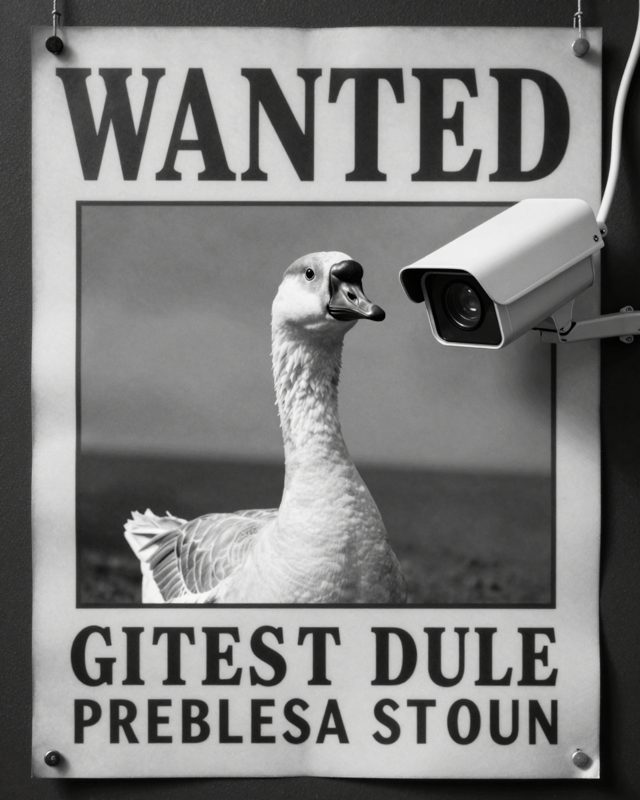 Image · Z-Image Turbo · 1088×1360 · seed 11
a goose's wanted poster photo, black and white surveillance camera still, menacing, realistic